
Install Mili on Windows, macOS or Linux
From the download page to your first secure sign-in: a signed installer, on hardware you own.
Mili installs with a simple download. The installer checks your machine, sets up its own container engine, downloads the Mili engine and starts it. No specialist required, and no Docker account.
Everything runs on hardware you own. Model inference is routed to the Mili GenAI gateway; your data, conversations and credentials stay on your machine.
Hardware requirements
Mili is comfortable on modern business hardware. Size the machine generously: the container engine is provisioned a large share of your system resources so the agent has room to work.
| Component | Minimum | Recommended |
|---|---|---|
| Operating system | macOS 26+ on Apple Silicon · Windows 10 version 1803 or newer · Linux (nearly any distribution), on Docker Engine · Raspberry Pi 4/5 (64-bit) | — |
| Virtualization | Virtualization support required (Windows and Linux) | — |
| Memory (RAM) | 8 GB | 16 GB or more |
| CPU | 4 cores | 8 cores |
| Free disk | 20 GB | 40 GB or more |
| Network | Outbound HTTPS for the one-time engine download (about 1.2 GB) and inference | — |
RAM and disk dictate what the agent can do. 8 GB is the floor: the more memory and free disk the machine has, the more the agent can handle at once and the faster it works. Size both for the type of workload you intend to give the agent.
Ports and network
Mili listens locally on one port and reaches out over HTTPS. No inbound port needs to be opened to the internet for normal use.
| Port | Direction | Purpose |
|---|---|---|
5001 | Inbound (local) | The Mili web app over HTTPS at https://localhost:5001 |
443 | Outbound | Model inference via the Mili GenAI gateway, plus engine download and updates |
8080 | Outbound (optional) | Call-home to a Mili Management Server, if this agent is centrally managed |
Install Mili
Download the installer for your system, then double-click it: it checks your machine, sets up its own container engine, downloads the Mili engine and starts it.
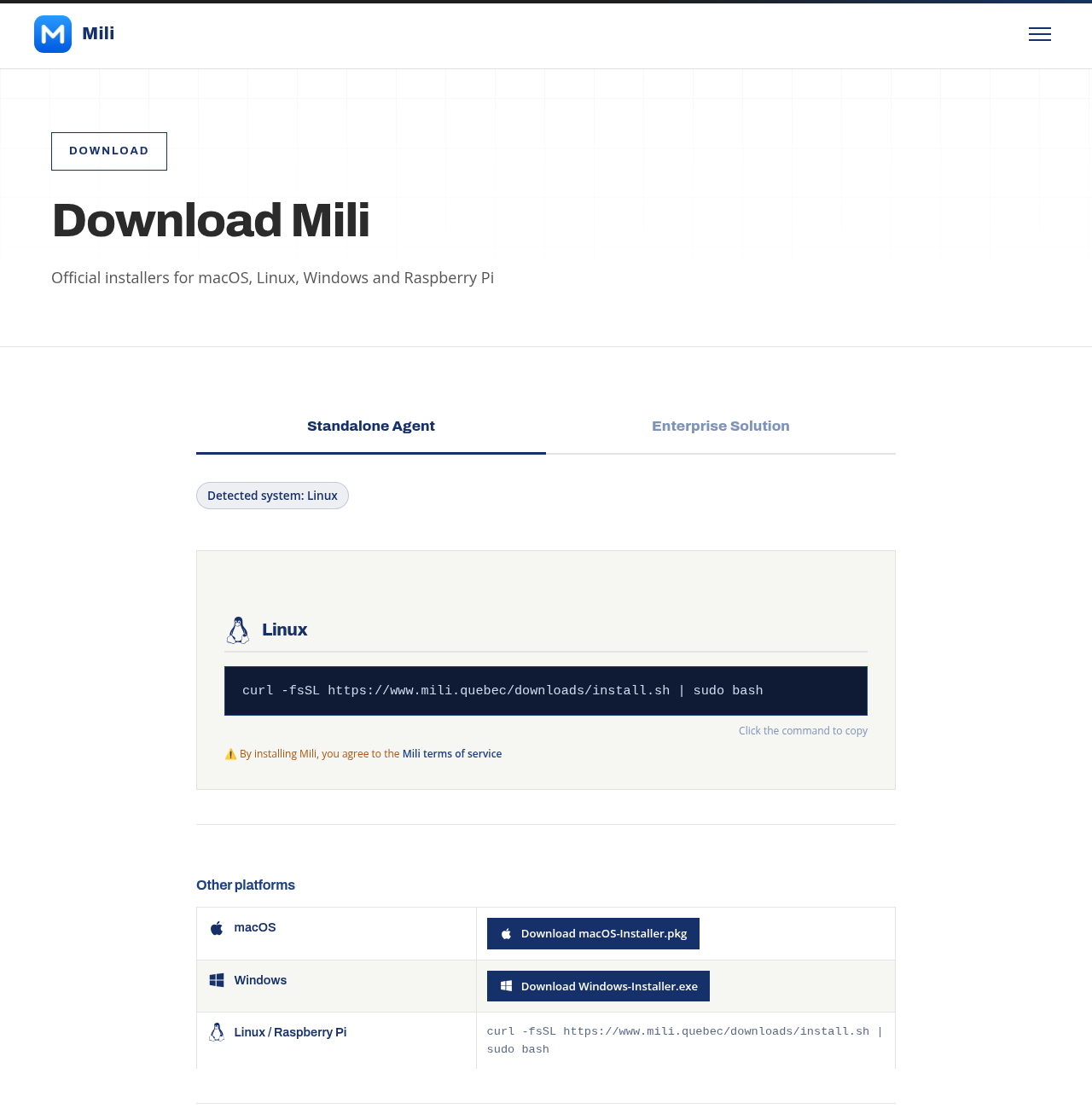
Run the installation
macOS
Download the installer, then double-click the .pkg file and follow the assistant. Installation is per user: no administrator required.
Double-click the downloaded file to start the installation.
Installs to /Users/<you>/mili and runs a dedicated Colima profile named mili with its own socket. Any existing Docker Desktop or Colima setup is left untouched.
Linux · Raspberry Pi
Open a terminal, paste and press Enter (you will be asked for your password).
Installs to /opt/mili and uses the host’s own Docker (installed automatically if absent).
Windows
Download the installer, then double-click the .exe file and follow the assistant. The installation runs as administrator.
Double-click the downloaded file to start the installation.
Windows runs the Mili engine inside a dedicated WSL2 distribution named mili-engine; Docker Desktop is not used. If WSL2 is not enabled yet, the installer enables it and asks you to restart, then continues automatically.
install.sh and install.ps1 scripts remain available for advanced users and fleet-wide GPO/MDM deployments: curl -fsSL https://www.mili.quebec/downloads/install.sh | bash (macOS/Linux) and irm https://www.mili.quebec/downloads/install.ps1 | iex (Windows).First sign-in
When the installer finishes, open Mili in your browser: https://localhost:5001
NET::ERR_CERT_AUTHORITY_INVALID). This is expected: Mili secures the connection with a certificate it created on your own machine. Because the address is your own computer, it is safe to continue. Click Advanced, then Proceed to localhost.Create your administrator account
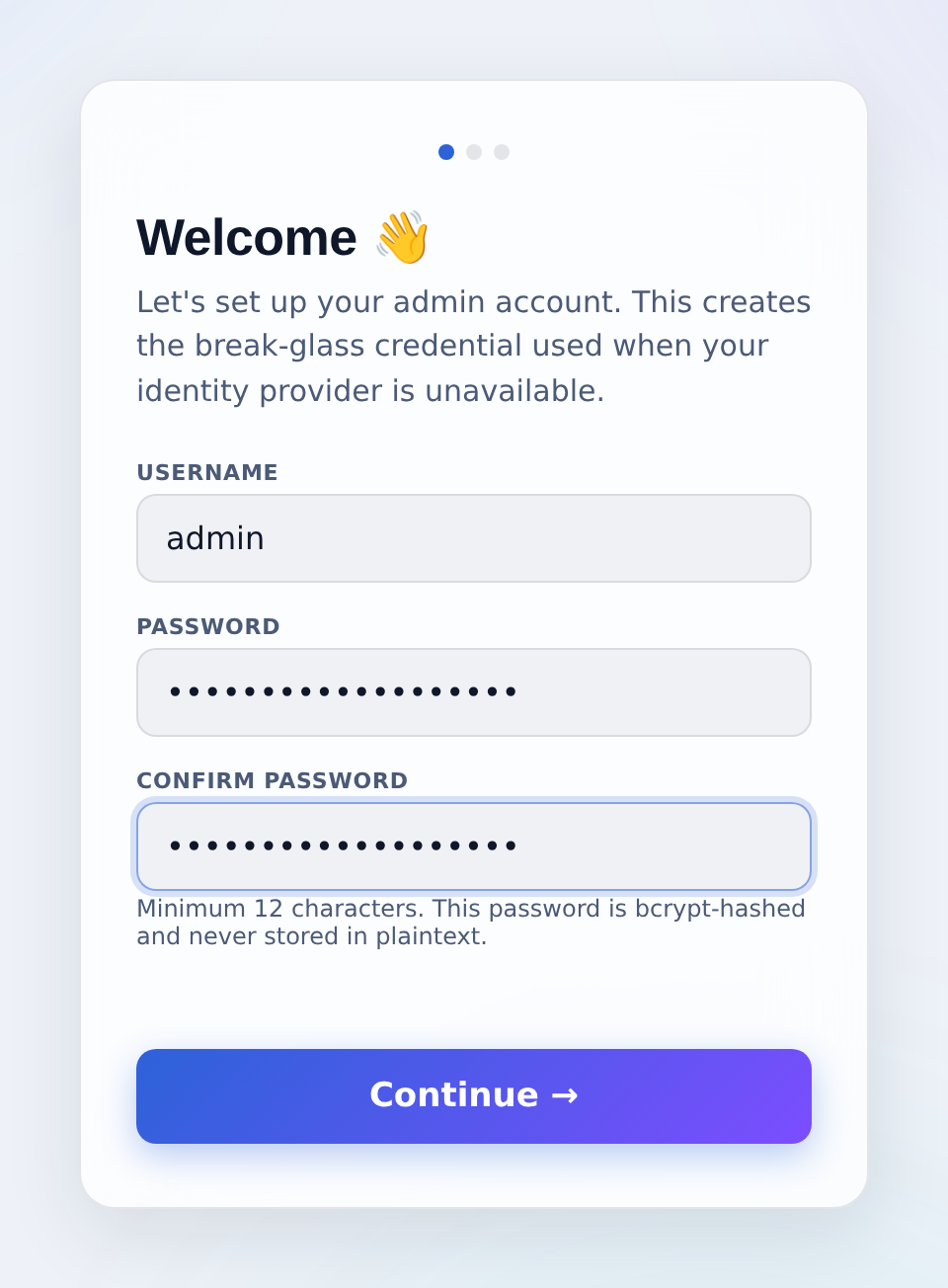
On first launch, Mili opens a three-step setup wizard. Choose a username (default admin) and a password of at least 12 characters, then confirm it.
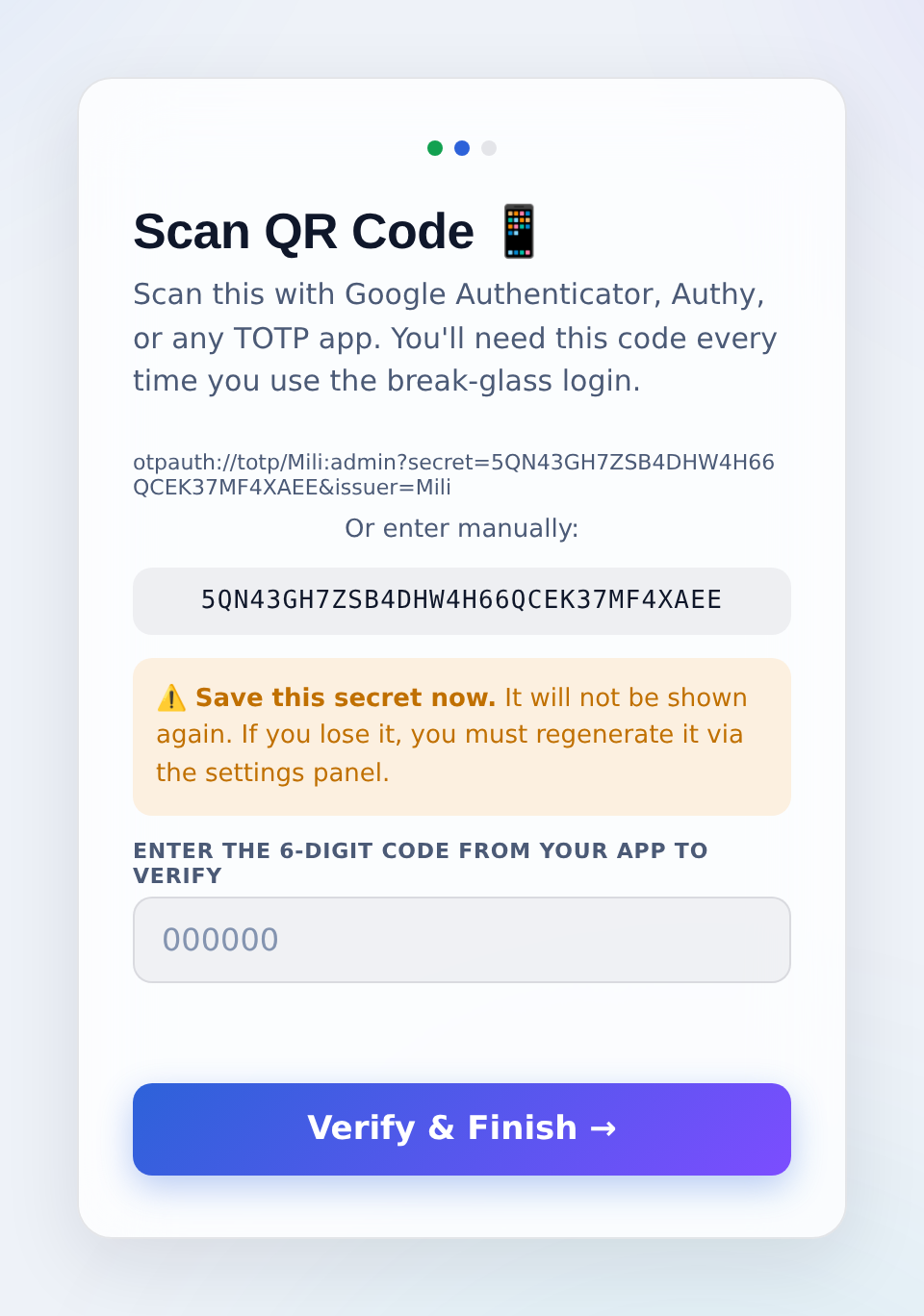
Next, scan the QR code with an authenticator app (Google Authenticator, Authy or any TOTP app), or enter the secret manually. Keep the secret safe: it is shown only once. Enter the 6-digit code from the app to verify and finish.
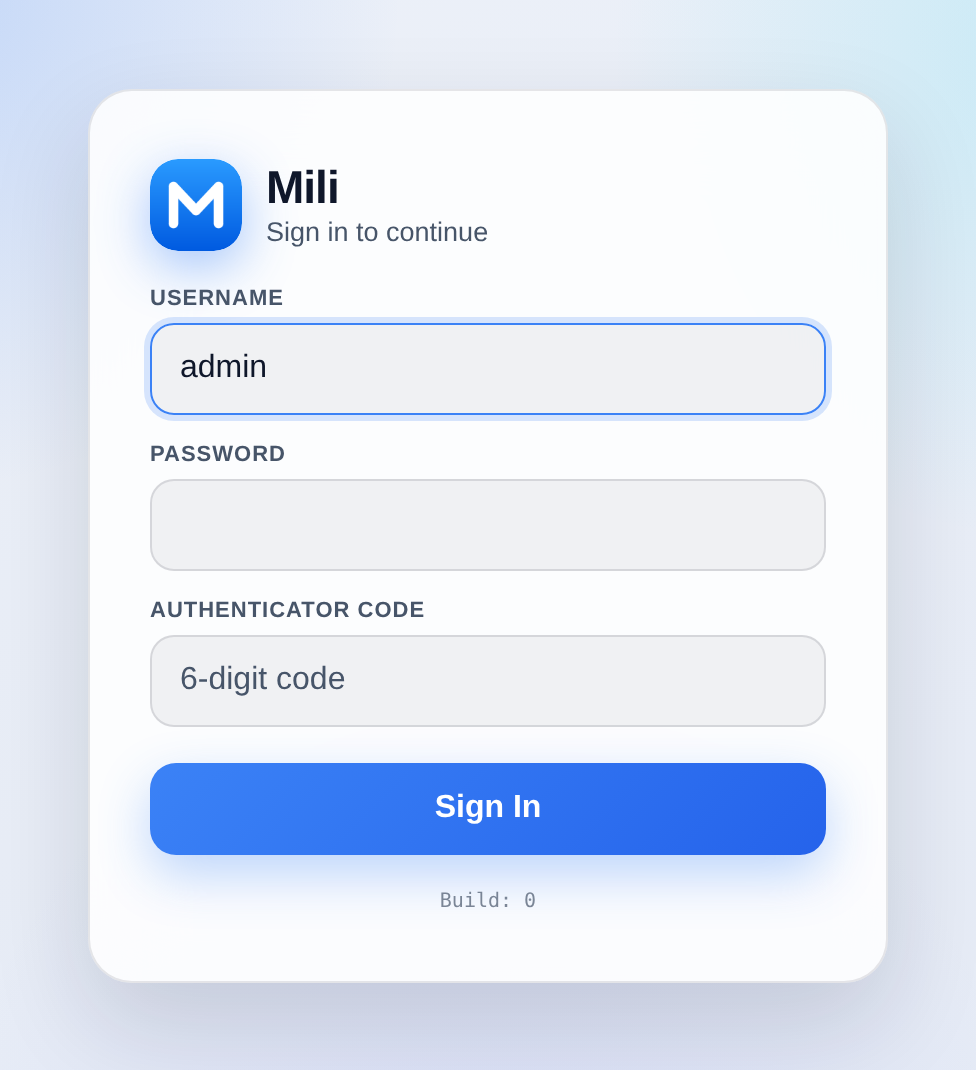
From then on, sign in with your username, password and the current authenticator code.
Authentication
Manage credentials any time under Settings, then Authentication: change the administrator password, reset or disable the TOTP second factor, and review the audit log of sign-ins.
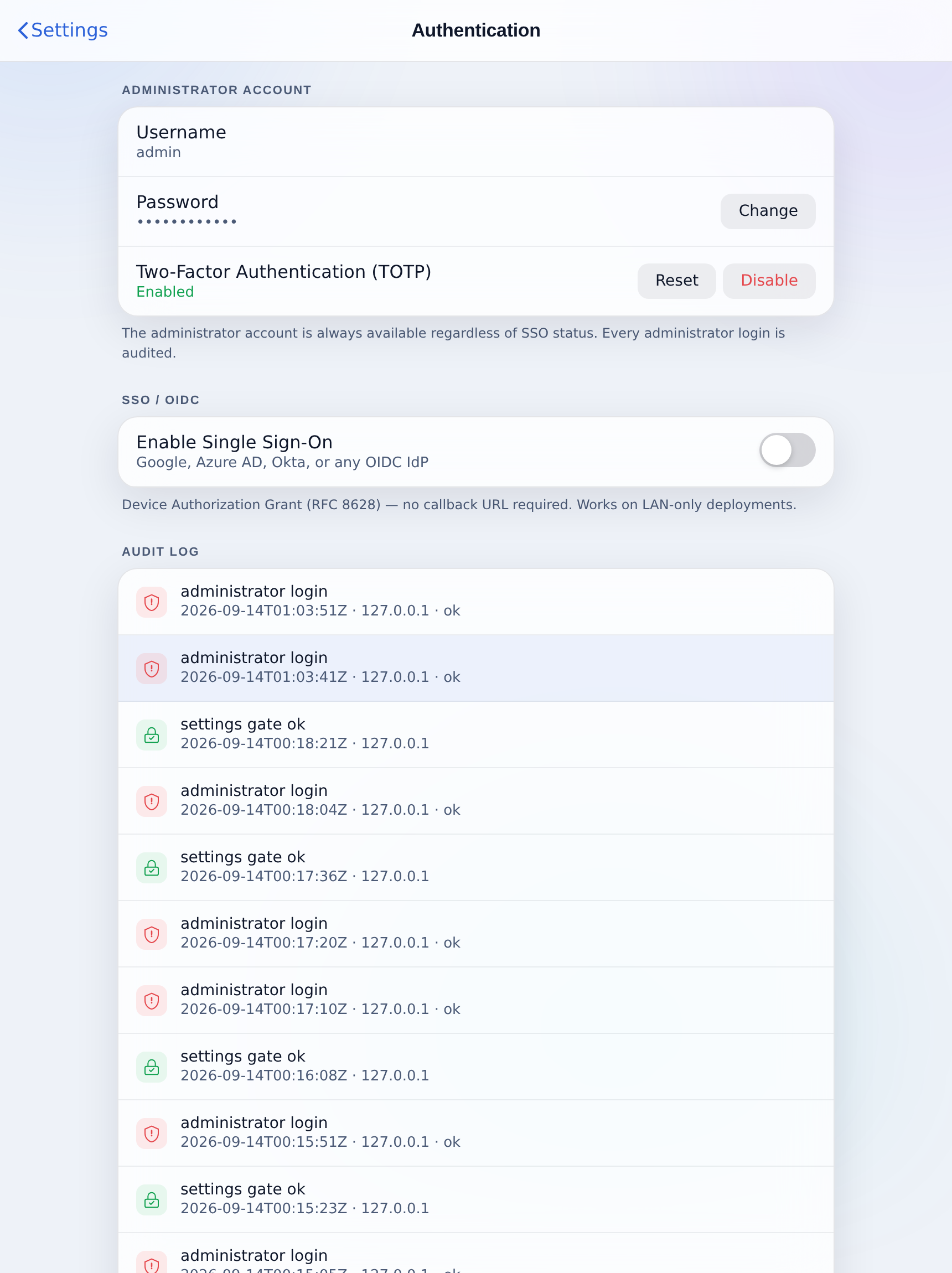
Single sign-on (SSO) Requires Management Server
The Enable Single Sign-On switch lets your team sign in with Google Workspace, Microsoft Entra (Azure AD), Okta or any OIDC provider. Sign-in is brokered by your Management Server, so SSO requires the Mili Management Server and an active call-home connection. Without it, use the local administrator account.
SSL / TLS certificate
At install time Mili generates a self-signed certificate on your machine. To remove the browser warning on a named host, upload your own certificate and private key under Settings, then SSL / TLS. A restart is required after uploading.
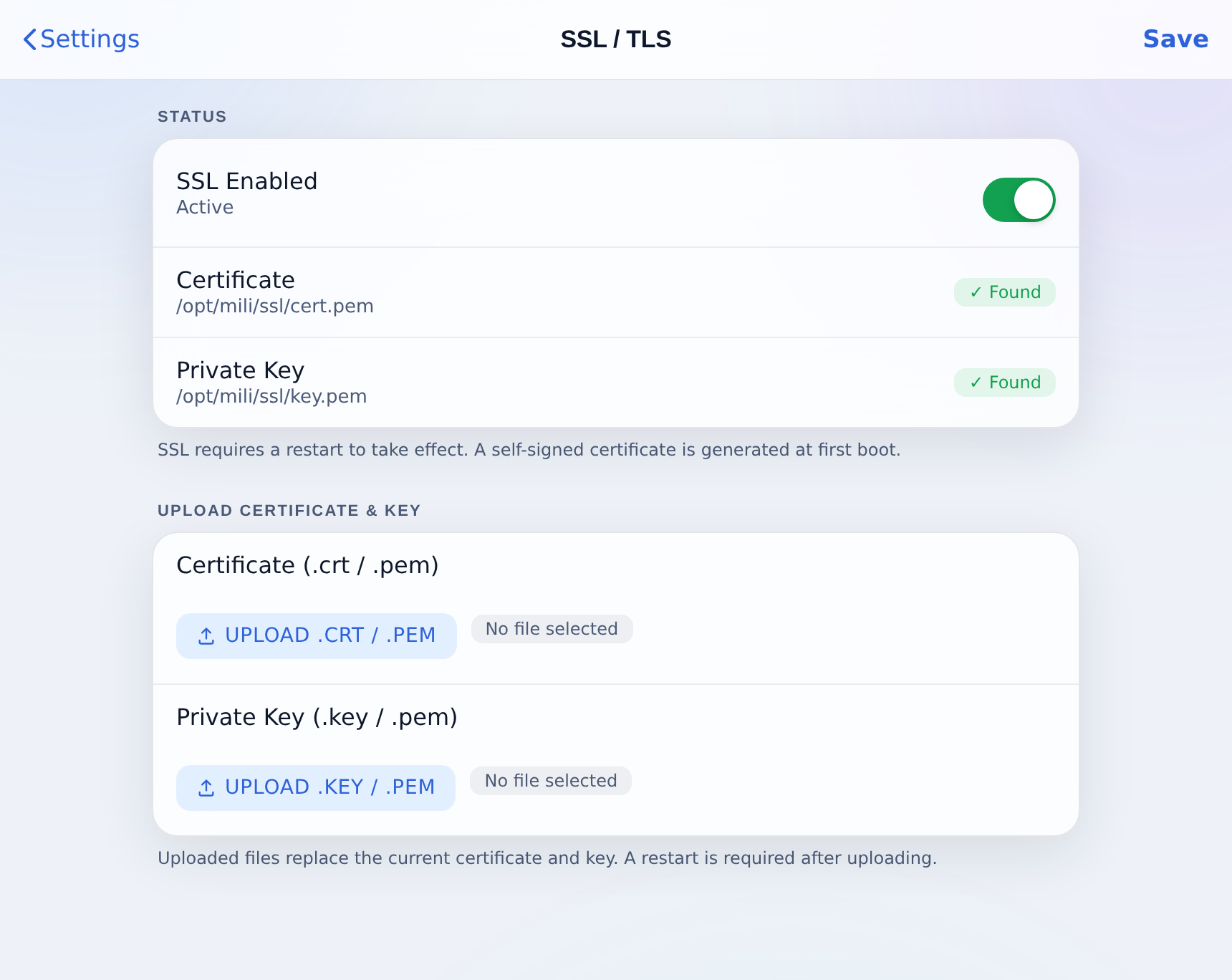
.crt/.pem) and private key (.key/.pem) are validated as a matching pair before going live. A mismatched pair is rejected and the current certificate is kept, so a bad upload never takes Mili offline.Connect to a Management Server (optional)
If your organization runs a Mili Management Server, connect this agent to it under Settings, then Callhome. Central management unlocks fleet features such as SSO, inbound MCP OAuth and team chat bots.
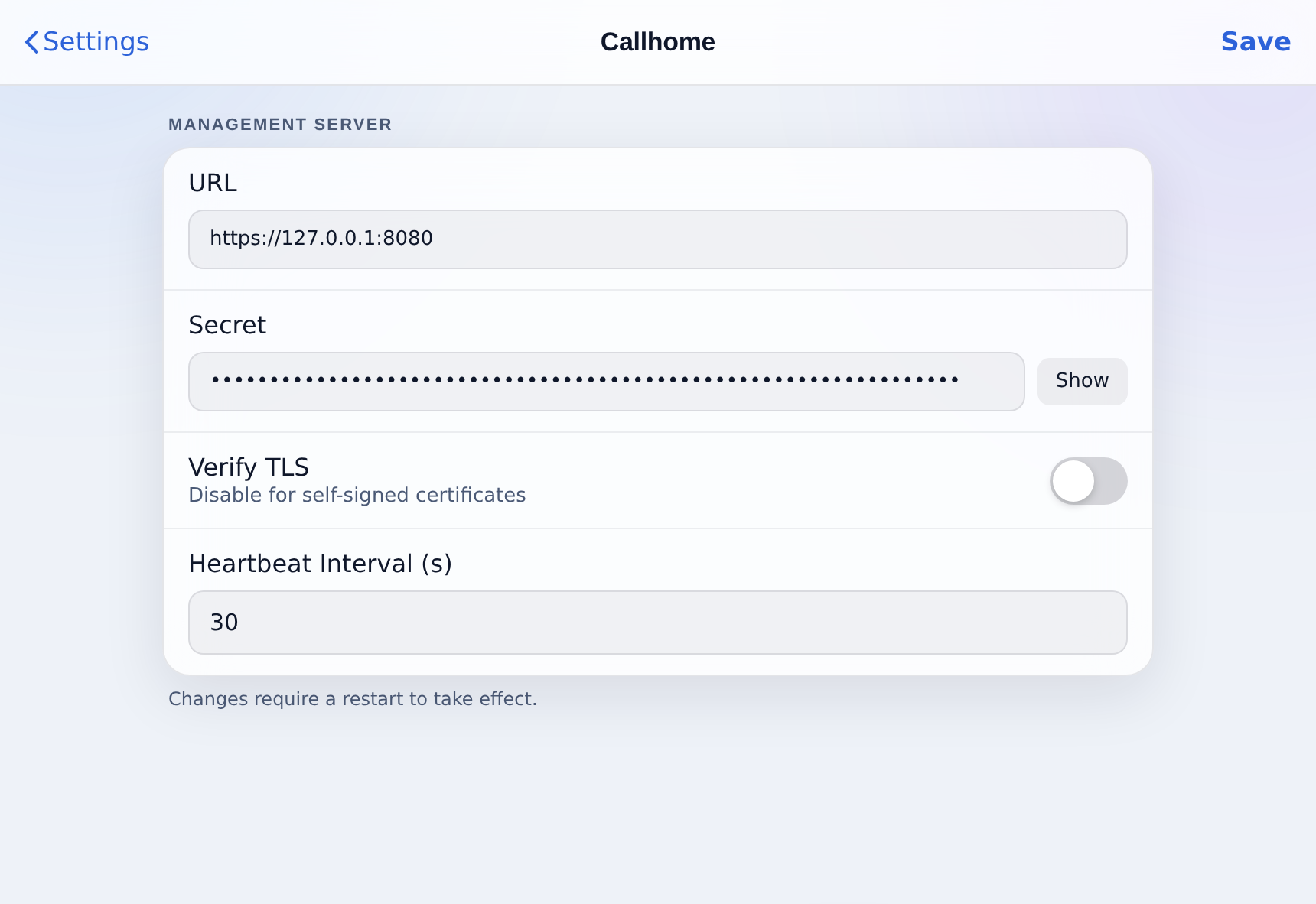
You need two things from whoever runs the console: the URL (for example https://mgmt.example.com:8080) and the secret, which is the MGMT_SECRET shown on the console’s Call-Home Secret page. Leave Verify TLS off while the console still uses its self-signed certificate, keep the 30-second heartbeat, save, and restart Mili for the change to take effect. The agent then appears under Pending approval on the console dashboard, where an administrator accepts it.
If something does not go to plan
| What you see | What to do |
|---|---|
| “Your connection isn’t private” at localhost | Expected. Click Advanced, then Proceed to localhost. |
localhost:5001 will not load | Give the engine a minute to finish starting, then refresh. On macOS check ~/mili/bin/mili-engine.sh status. |
| macOS: “do NOT run with sudo” | Re-run the command without sudo. |
| Windows: install fails early | In an admin PowerShell run wsl --install, restart, then run the installer again. |
| The console never shows the agent | Check the URL and secret on the Callhome page match the console, then restart Mili. Changes to Callhome only apply after a restart. |
Where your data lives
Mili stores everything in its install folder (/opt/mili on Linux, ~/mili on macOS, inside the mili-engine distribution on Windows) and in Docker volumes. Nothing is shared with an outside tenant, and every credential is encrypted at rest.